
On this page
Learn how to understand your website's search performance, discover what customers are searching for, and build a practical 30-day plan for making better marketing decisions.
You've connected your business website to Google Search Console.
That's a good start.
But once you open the dashboard, you see charts, numbers, search terms, and reports. You might notice clicks increasing, impressions declining, or pages that Google hasn't indexed.
What are you supposed to do with all that information?
You don't need to become an SEO expert to make Google Search Console useful for your business.
You just need to understand a few important reports and know what questions to ask.
This guide will help you discover:
- Whether people are finding your website through Google Search.
- Which searches and pages are getting attention.
- What might be worth investigating or improving.
You'll also follow a practical four-week plan designed for busy business owners.
By the end, you'll have a starting record of your website's search visibility, a better understanding of your important pages, and one manageable next step.
This isn't a promise of higher rankings or more traffic in 30 days. It's a way to make more informed decisions about your website.
Haven't set up Search Console yet? Start with our beginner-friendly Google Search Console setup tutorial. Once your website is verified, return here.
Start Here: Your First 15 Minutes in Google Search Console
Before learning about every report, let's find a few useful pieces of information about your website.
You don't need to change anything on your website or understand complicated SEO terminology.
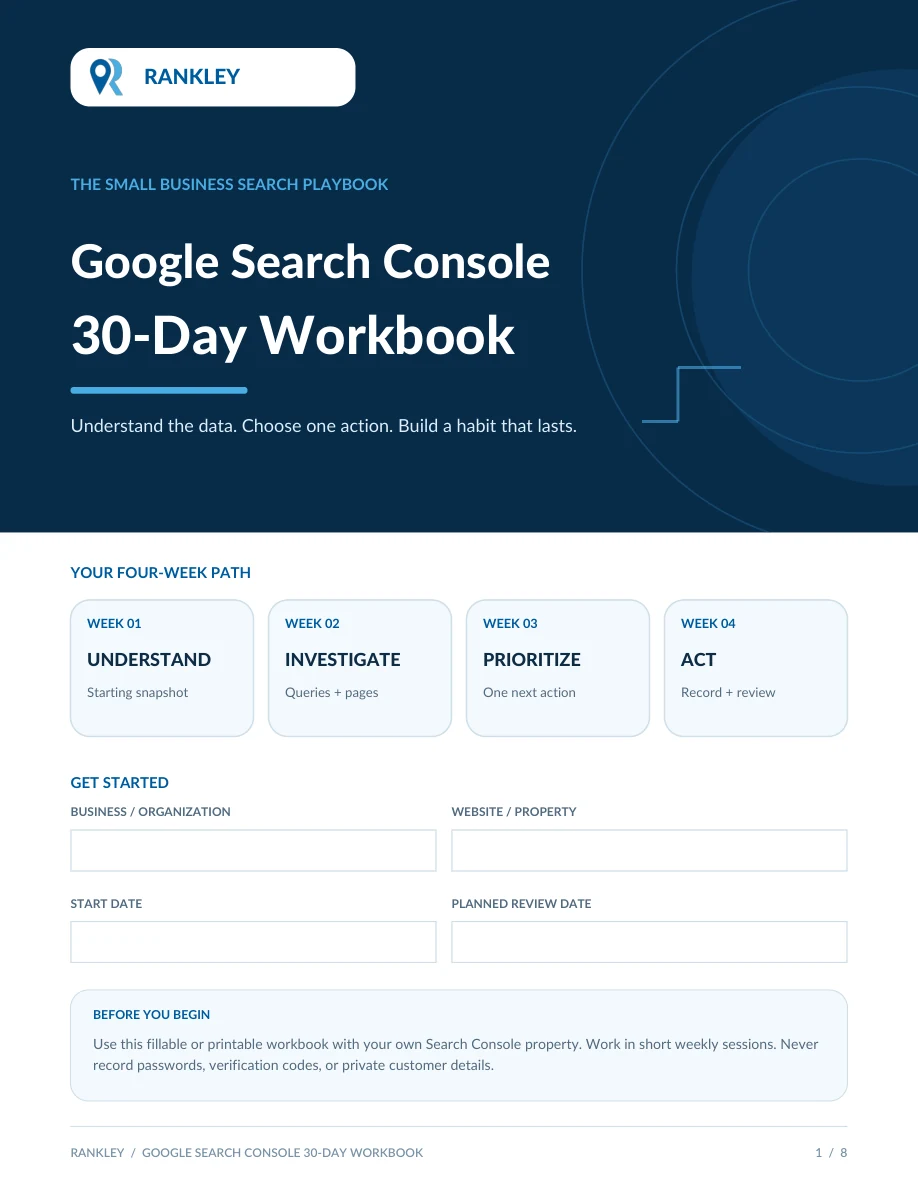
FREE PRINTABLE PDF
Your 30-Day Search Console Workbook
Keep your starting metrics, search-query observations, important pages, and four-week action plan together in one practical worksheet.
Free eight-page PDF · Fillable and printable · No signup required
Step 1: Open Your Website Property
Visit Google Search Console and sign in.
Select the website you want to review.
Google calls each website or group of website addresses a property.
If you see more than one property, choose the one that covers the website addresses you want to monitor.
For example, you might have both a Domain property for example.com and a URL-prefix property for https://www.example.com/.
Step 2: Open the Performance Report
Find the Performance report for Google Search results.
If your website has enough historical data, choose Last 3 months as the reporting period.
For this exercise, use the Web search type.
You'll see a chart, several numbers, and a table.
We're only going to look at a few things.
Step 3: Find Two Numbers
Look for:
Total clicks: How many clicks your website received from Google Search results.
Total impressions: How often your website appeared in eligible Google Search results.
Write down these numbers and the reporting dates.
Step 4: Find One Search Query and One Page
Scroll down to the table.
Select Queries and find one search term associated with your website.
Next, select Pages and find one page receiving search visibility.
Don't worry about analyzing them yet.
Step 5: Write Down One Observation
Finish this sentence:
"One thing I noticed about my website is..."
Your answer might be:
- "Our homepage receives most of our search clicks."
- "Our main service page appears for relevant searches."
- "We don't have much search data yet."
That's enough for your first review.
What if the Report Is Empty?
A new website or recently added property may have limited data.
Check that you're viewing the correct property and date range.
If there still isn't much information, you can inspect your important pages and return to the Performance report later.
Your first takeaway: You can learn something useful from Search Console without understanding every chart.
In the companion workbook, you'll record this information on Page 2: My Starting Search Snapshot.
1. What Google Search Console Can—and Cannot—Tell You
Google Search Console is a free tool that helps website owners understand how their websites appear in Google Search.
For a small business, its information answers three main questions.
How Visible Is My Website?
Search Console shows how often your website appears in eligible Google Search results.
This can help you understand whether your business is gaining visibility for searches related to its services, products, or information.
What Are People Searching For?
Search Console shows queries associated with your website's search appearances.
It also shows which pages receive clicks from Google Search results.
Together, this information can help you understand what potential customers are looking for and which parts of your website they encounter.
Can Google Find My Important Pages?
Search Console includes tools for checking whether Google has indexed individual pages and for investigating certain website issues.
This is especially useful when you publish new pages or make significant website changes.
What Doesn't Search Console Tell You?
Search Console doesn't directly measure every business outcome.
For example, it doesn't tell you exactly:
- How many customers called after visiting your website.
- How many visitors booked an appointment.
- Which services produced the most revenue.
- Whether someone who clicked your website became a paying customer.
A click isn't automatically a lead, and an impression isn't a website visit.
Other tools, including Google Analytics and Google Business Profile, can provide different pieces of the picture. We'll discuss those later.
Meet Our Example Business: Oakline Home Cleaning
Throughout this guide, we'll follow Oakline Home Cleaning, a fictional residential cleaning company.
Oakline offers recurring house cleaning and move-out cleaning services.
The owner has connected the website to Search Console but isn't sure what to do with the reports.
They want to understand how people discover the business and whether the website clearly explains its services.
We'll follow the owner through the same process you can use for your business:
Review the data → Ask a question → Investigate → Choose an action → Follow up
All Oakline business details and performance numbers are hypothetical. They're teaching examples, not real customer results or recommended performance benchmarks.
2. Understand the Four Numbers You'll See Most Often
Open the Performance report for Google Search results.
You'll see four main metrics.
Here's what they mean in everyday language.
Total Clicks
Clicks generally count interactions with Google Search results that lead to your website.
For example, someone searches for a cleaning company, sees your website in Google Search, and clicks the result.
What this tells you: How much clicking activity your website received from Google Search.
It doesn't tell you whether those people contacted your business.
Total Impressions
An impression generally means your website appeared in an eligible Google Search result, according to Google's reporting rules.
Someone doesn't need to click your website for an impression to be recorded.
What this tells you: How often your website appeared in search results.
Impressions provide information about visibility, not how many people visited your website.
Average Click-Through Rate
Click-through rate, or CTR, is the percentage of impressions that resulted in clicks.
The formula is:
CTR = Clicks ÷ Impressions × 100
Suppose a website received:
| Metric | Example |
|---|---|
| Impressions | 1,600 |
| Clicks | 64 |
| CTR | 4.0% |
The calculation would be:
64 ÷ 1,600 × 100 = 4%
Does that mean the website performed well?
Not enough information to say.
CTR can vary depending on the searches, the type of results shown, their positions, and what people are looking for.
There isn't one universal CTR target that every small business should aim for.
Average Position
Average position is a measure of where your website's topmost result appeared in Google Search, averaged across the reported impressions.
It isn't a permanent ranking for a keyword.
Search results can vary by location, device, and other circumstances.
For example, an average position of 12 doesn't mean everyone sees your website in the twelfth position.
It also isn't a direct measure of your Google Maps ranking.
Which Numbers Matter Most at First?
Start with clicks and impressions.
As you become familiar with the reports, use CTR and average position for additional context.
Here's a quick reference:
| Metric | Useful question |
|---|---|
| Clicks | Are people clicking through to our website? |
| Impressions | How often is our website appearing in Google Search? |
| CTR | What share of impressions resulted in clicks? |
| Average position | Where did our results generally appear? |
You don't have to memorize the formulas.
The important thing is knowing what each number represents.
Is There an Easier Report?
Google also offers Search Console Insights, which presents simplified summaries of website search performance.
Depending on availability, it can highlight popular pages, changing trends, clicks, impressions, and queries.
It's a useful alternative for business owners who prefer a simpler overview.
For the exercises in this guide, we'll use the standard Performance report because it provides the detailed Queries and Pages views we'll need.
3. Establish Your Starting Point
Before choosing what to improve, it's helpful to understand your website's current search performance.
Think of this as taking a starting photograph.
You're not grading your business or comparing it with competitors.
You're simply recording what the available information shows.
Choose Your Reporting Period
For a website with historical data, the last three months is a practical starting point.
In the Performance report:
- Open the date selector.
- Choose Last 3 months.
- Confirm the search type is Web.
- Write down the actual start and end dates shown.
You can use shorter periods later when comparing changes.
The important thing is to record your dates and use consistent settings.
Oakline's Starting Snapshot
Here's the fictional starting record for Oakline Home Cleaning:
| Metric | Starting value |
|---|---|
| Reporting period | Three-month period |
| Search type | Web |
| Total clicks | 64 |
| Total impressions | 1,600 |
| Average CTR | 4.0% |
These aren't targets for your business.
Oakline is simply documenting its starting position.
Record a Few Relevant Queries
Open the Queries tab.
The owner notices searches associated with:
- Oakline Home Cleaning.
- Recurring house cleaning.
- Move-out cleaning.
- Preparing for a cleaning appointment.
They write down a few examples.
At this point, they're only gathering information.
Record Your Important Pages
Next, the owner opens the Pages tab.
The relevant pages include:
- Homepage.
- Recurring house cleaning page.
- Move-out cleaning page.
They also review the website directly to make sure their list includes the business's most important service pages, even if those pages have little reported visibility.
Add Some Context
A starting snapshot becomes more useful when you know what was happening around that time.
You might note:
- A website redesign.
- A newly published service page.
- Seasonal changes in customer demand.
- A recently corrected technical issue.
- A new product or service offering.
Oakline's owner notes that move-out cleaning is an important service and that the corresponding website page hasn't been reviewed recently.
That doesn't mean the page has a problem.
It gives the owner something worth examining.
What if You Have Almost No Data?
Record what's available.
For example:
"Website recently launched. Limited Search Console performance data."
That's still a useful starting record.
Your starting snapshot doesn't need to look impressive. It needs to be accurate.
Workbook — Page 2: My Starting Search Snapshot
Record your property, reporting dates, clicks, impressions, a few relevant queries, and important website pages.
4. Understand What People Are Searching For
Now that you have your starting information, let's explore the Queries tab.
This is one of the most useful parts of Search Console for a small-business owner.
It helps you understand the searches associated with your website's visibility.
Find Your Search Queries
In the Performance report:
- Confirm your date range and search type.
- Select Queries.
- Review the search terms shown.
- Sort by clicks or impressions to explore the results.
Google doesn't display every individual search query. Some information is omitted for privacy or reporting reasons.
Treat the visible list as useful information rather than a complete history of every search.
Searches for Your Business Name
Some queries include a specific business name.
For Oakline, examples might include:
- Oakline Home Cleaning.
- Oakline cleaning services.
These are sometimes called branded searches.
They may reflect people who already know about the company.
Searches for Your Services
Other queries describe services rather than a specific company.
For example:
- Move-out cleaning.
- Recurring house cleaning.
- Residential cleaning services.
These are useful because they relate directly to what the business offers.
If your website appears for relevant service searches, that's worth noting.
It doesn't automatically mean everyone searching is ready to hire someone.
Searches That Ask a Question
Some people search because they want information.
A cleaning company's potential customers might ask:
- What does move-out cleaning include?
- How should I prepare for a cleaning appointment?
- How often should I schedule house cleaning?
Questions like these can help you understand what customers want to know before contacting a business.
They may also reveal information your website could explain more clearly.
Location-Related Searches
Some searches include cities, towns, or neighborhoods.
These can provide useful context for a local business.
But not every local search contains a location name, and a location-related query doesn't automatically justify creating a new city page.
Your website should describe the areas you genuinely serve and provide useful information for customers.
Oakline's Next Discovery
The owner notices that some relevant searches involve move-out cleaning and what the service includes.
This leads to a question:
"Does our move-out cleaning page answer the questions potential customers are asking?"
That's the next thing they'll investigate.
They haven't decided to change the page yet.
Three Questions to Ask About Your Queries
When reviewing your own report, consider:
- Are people finding us for services we actually offer?
- Are there common customer questions we could answer more clearly?
- Is there an important service worth investigating further?
A service missing from the visible query list isn't proof that something is wrong. Reporting limitations and search demand can affect what you see.
Workbook — Page 3: Understanding My Search Queries
Record up to five relevant queries. Note whether each relates to your business name, a service, or a customer question. Write one question you'd like to investigate.
5. Find Out Which Website Pages Get Attention
Search queries tell you what people are searching for.
The Pages tab shows which website content is receiving search visibility and clicks.
Together, these reports can help you understand how customers encounter your business online.
Open the Pages Tab
In the Performance report, select Pages.
You'll see website URLs with their associated search-performance information.
For a small business, these might include:
- Your homepage.
- Main service pages.
- Important location pages.
- Educational articles.
- Other public pages appearing in Google Search.
Start with pages that matter most to potential customers.
What Does a Page With Many Impressions Mean?
It means the page appeared in eligible Google Search results during the selected period.
That can be useful information, especially when the page describes an important service.
But impressions alone don't tell you whether the page meets customer needs.
What About a Page With Few Clicks?
It might deserve further investigation.
However, don't assume that a page needs to be rewritten simply because it receives fewer clicks than impressions.
The queries may be informational. The page may appear lower in search results. Or there may be too little data to draw a useful conclusion.
A better next step is to examine the searches associated with the page.
Connect One Page to Its Queries
Here's a practical workflow:
- Open the Pages tab.
- Select a page you want to investigate.
- Keep that page filter applied.
- Switch to Queries.
- Review the searches associated with that page.
Now you're looking at the queries connected to one specific URL.
Oakline Investigates Its Move-Out Cleaning Page
The owner selects Oakline's move-out cleaning page.
They review the associated queries and see searches related to the service and what customers should expect.
Then they open the page on their website.
It has a general description and a contact button, but it doesn't clearly explain what customers need to know before scheduling.
The owner asks:
"Would this page be more helpful if we explained what our move-out cleaning service includes and how customers should prepare?"
That's a question about the customer experience, informed by Search Console data.
Review the Page Like a Potential Customer
When looking at your own important pages, ask:
- Is it immediately clear what this service is?
- Who is the service for?
- What does it include?
- Are limitations or preparation requirements explained?
- Can customers easily contact the business?
- Is the page easy to use on a phone?
You don't need to add more text simply to make a page longer.
The goal is to make the page genuinely useful, accurate, and easy to understand.
Workbook — Page 4: My Most Important Website Pages
Choose three important pages. Record what you noticed about each page and one question worth reviewing.
6. Recognize Search Trends Without Jumping to Conclusions
Once you understand your starting numbers, you can begin looking at changes over time.
This is useful, but it's also easy to misinterpret.
A chart moving up or down doesn't automatically explain why something happened.
Compare Similar Reporting Periods
A practical option is to compare two completed periods of equal length.
For example:
- One completed 28-day period.
- The preceding 28-day period.
Search Console provides comparison options in the Performance report.
Keep the same property, search type, and relevant filters.
Avoid comparing a partially completed period with a fully completed earlier one.
What if Clicks Increase?
Ask a few questions before deciding what the change means.
Did impressions also increase?
Which pages received more clicks?
Did particular search queries change?
Could seasonal demand or recent website changes be relevant?
These questions help you investigate the pattern.
They don't establish a single cause.
What if Clicks Decrease?
Begin with the same approach.
Check the reporting dates and impressions.
Look at the pages and queries contributing to the change.
Consider whether the business is experiencing normal seasonal differences.
If an important page has a technical or indexing issue, investigate that separately.
Oakline's Example Comparison
Imagine Oakline compares two completed 28-day periods within its broader three-month reporting window.
| Metric | Earlier 28 days | More recent 28 days |
|---|---|---|
| Clicks | 20 | 18 |
| Impressions | 500 | 520 |
These hypothetical results show slightly fewer clicks and slightly more impressions.
That isn't enough information to conclude that the website is getting better or worse.
The owner should examine the relevant pages, queries, and business context before deciding whether action is necessary.
Do You Need to Use Every Filter?
No.
Search Console can also show information by device, country, and other dimensions.
These can help when you're investigating a specific question.
For your first month, focus on the overall trends and the pages that matter most.
A useful trend is something to investigate, not automatically something to react to.
We'll use the workbook's final Change Log and Monthly Review page to record meaningful comparisons when it's time to follow up.
7. Check Whether Your Important Pages Are Indexed
Search Console also helps you investigate whether Google can find and index pages on your website.
A page generally needs to be indexed to be eligible to appear in Google's regular search results.
However, not every URL on a website is supposed to be indexed.
Start With a Few Important Pages
For a small business, begin with:
- Homepage.
- Main services page.
- Individual service pages.
- Important location pages, when appropriate.
- A useful recently published resource.
You don't need to inspect every URL.
Use URL Inspection
At the top of Search Console, enter the complete URL of the page you want to check.
The URL Inspection tool displays information about Google's indexed version of that URL.
If the report says URL is on Google, the page is generally indexed and eligible to appear in search results.
That doesn't guarantee a particular position or number of clicks.
What if a Page Isn't Indexed?
First, find out why.
Some non-indexed URLs are expected.
They may be redirects, duplicates, alternate versions, or pages deliberately excluded from search.
Other situations deserve closer attention.
For example:
- An important service page can't be accessed.
- A page accidentally has a noindex instruction.
- A recently created page isn't being discovered as expected.
The correct response depends on the specific issue.
What's the Difference Between the Two Pages Reports?
There are two different places where you'll encounter page information:
Performance → Pages: How pages appear and receive clicks in Google Search.
Indexing → Pages: Which known URLs are indexed and why others may not be.
For beginners, checking a handful of important URLs with URL Inspection is often more manageable than investigating every indexing status.
When Should You Ask for Help?
If the issue involves unfamiliar website settings, such as robots.txt, canonical URLs, noindex instructions, or server errors, ask an appropriate website administrator for assistance.
Don't make potentially disruptive technical changes simply because a report contains an unfamiliar warning.
Oakline's Indexing Check
Oakline checks its homepage, recurring cleaning page, and move-out cleaning page.
In this fictional example, all three are indexed.
That's useful to know.
The owner's main concern is no longer whether Google can index the move-out cleaning page.
It's whether the page explains the service clearly enough for customers.
Workbook — Page 5: Indexing and Website Checks
Check your important pages. Record their reported statuses and whether anything requires follow-up.
8. Turn Search Console Observations Into Useful Actions
You've learned how to read basic performance information, examine queries and pages, and check indexing.
Now comes the most valuable question:
What should you actually do with what you've learned?
Not every observation requires a website change.
Sometimes the most useful next step is gathering more information.
The Four-Step Framework
Use this simple process:
Observation → Question → Action → Follow-Up
Let's return to Oakline Home Cleaning.
1. Observation
Oakline's move-out cleaning page appears for searches relevant to the service, including questions about what the cleaning involves.
That's what the data shows.
2. Question
The owner asks:
"Does our move-out cleaning page clearly explain the service and answer the questions customers are asking?"
This is worth investigating.
3. Action
The owner reviews the company's actual procedures and confirms that the page could explain certain details more clearly.
The business decides to improve the page by adding accurate information about:
- What the service includes.
- Relevant preparation requirements.
- Any important exclusions or optional services.
- How customers can request an estimate.
The owner supplies verified business information rather than asking someone to invent service details.
4. Follow-Up
Once the page is updated, the owner records:
- Which page changed.
- What was changed.
- Why it was changed.
- When the update went live.
- When the page should be reviewed again.
Later, they can examine comparable Search Console data and other relevant business information.
This doesn't guarantee better rankings, but it creates a sensible, reviewable process.
Three Types of Opportunities
Most beginner-friendly follow-up actions fall into three categories.
Content Clarity
An important page may need clearer information.
For example:
- Explaining a service.
- Answering a customer question.
- Correcting outdated details.
- Improving contact information.
Page Discoverability
Customers or search engines may have difficulty finding important pages.
That could lead to a review of website navigation, internal links, or page accessibility.
Technical Issues
Some problems require help from a website provider.
Examples include an important page that can't be crawled or a configuration that prevents indexing.
How to Choose One Priority
Before taking action, ask:
- Will this address a real customer need or verified issue?
- Do we have enough accurate information?
- Is the change manageable?
- Can we review what happens afterward?
Choose one action that meets those criteria.
A Simple Decision Table
| Observation | What to investigate | Possible next step |
|---|---|---|
| Relevant queries appear | Does the page answer those needs? | Review the service explanation |
| Important page isn't indexed | What does URL Inspection report? | Investigate the specific cause |
| Impressions rise but clicks don't | Which queries and pages changed? | Review context before editing |
| Search clicks increase | What happens after visitors arrive? | Review website analytics separately |
| Important page has outdated information | What needs correcting? | Update verified business details |
Don't automatically rewrite pages because CTR is low.
Don't create nearly identical pages for every location query.
And don't assume that a change caused an increase simply because it happened first.
A worthwhile action should address something real—not just make a dashboard look different.
Workbook — Page 6: Opportunity Prioritization
Record up to three opportunities. Choose one priority, explain why it matters, and identify who will handle it.
9. Your First 30 Days: A Practical Four-Week Plan
Now let's put what you've learned into practice.
This plan is designed for a business owner who has other responsibilities.
You won't need to spend time in Search Console every day.
Instead, complete one short review session each week.
The four weeks build on one another:
Understand → Investigate → Prioritize → Act
Week 1: Understand Your Starting Point
Days 1–7
Goal: Get comfortable with the reports and document your starting information.
Estimated time: One 20–30-minute session if your property already has usable data.
What to Do
- Confirm you're viewing the correct website property.
- Open the Performance report.
- Select a suitable reporting period.
- Record clicks and impressions.
- Identify a few relevant queries and important pages.
- Inspect your homepage and primary service pages.
- Write down one observation.
You may have already completed part of this during the first 15-minute exercise.
That's intentional. This week is about organizing that information into a record you can return to.
Oakline's Week 1
Oakline records its fictional three-month snapshot:
- 64 clicks.
- 1,600 impressions.
- 4.0% CTR.
The owner also identifies move-out cleaning as a topic worth investigating.
The primary pages are indexed.
Week 1 deliverable: A completed starting snapshot.
You don't need to change your website yet.
Week 2: Understand How Customers Find You
Days 8–14
Goal: Connect relevant searches to important website pages.
Estimated time: One 20–30-minute session.
What to Do
- Review your Queries tab.
- Look for service-related searches and customer questions.
- Open the Pages tab.
- Select one important page and review its queries.
- Visit that page on your website.
- Write one question about its usefulness.
Focus on understanding what the page provides to a real customer.
Oakline's Week 2
The owner examines the move-out cleaning page and its associated queries.
The page describes the service generally, but may leave potential customers with unanswered questions.
The owner writes:
"Does this page explain what customers can expect before scheduling move-out cleaning?"
Week 2 deliverable: A short list of relevant queries and pages, plus one useful question.
You still don't need to make a change.
Week 3: Choose One Worthwhile Action
Days 15–21
Goal: Decide what deserves attention.
Estimated time: One 20–30-minute review session, excluding substantial website work.
What to Do
- Review your previous observations.
- Check whether your important pages have any unresolved indexing problems.
- Separate customer-information questions from technical issues.
- Consider potential improvements.
- Choose one priority.
- Decide who will handle it.
Ask yourself whether the action will address an actual customer need or a verified problem.
Oakline's Week 3
The owner checks the company's approved move-out cleaning procedures.
They confirm that the website could explain included services and preparation requirements more clearly.
The owner chooses one priority:
"Improve the move-out cleaning page using our actual service information."
They assign the update to the website manager and prepare the required details.
Week 3 deliverable: One documented priority, its reason, and an assigned owner.
Week 4: Take Action and Plan Your Follow-Up
Days 22–30
Goal: Complete or initiate one improvement and establish your review routine.
Estimated time: One 20–30-minute review session, plus the time required for the actual work.
What to Do
- Complete the chosen action or send the request to the appropriate person.
- Record the affected page.
- Document what changed and why.
- Record the completion date.
- Choose a future review date.
- Complete your first-month summary.
Oakline's Week 4
The website manager updates the move-out cleaning page using verified service details.
The page now explains what customers can expect and provides clearer information about preparation and requesting an estimate.
The owner records the update date.
They also schedule a later review.
They don't expect Search Console to show a dramatic change immediately.
Week 4 deliverable: One completed or initiated action, a change record, and a future review date.
What if Nothing Improves During the First 30 Days?
That's possible.
Google Search visibility doesn't follow a guaranteed 30-day schedule.
A website may have limited data, seasonal changes, or issues that take longer to investigate.
You might also discover that your best next step is asking a website provider for help.
The purpose of this plan isn't to force a measurable improvement before the month ends.
It's to help you make more informed decisions.
By the end, you should have:
- A starting performance snapshot.
- A few relevant search queries.
- A list of important pages.
- Any meaningful indexing questions.
- One chosen action.
- A plan for reviewing results.
That's a useful foundation for ongoing website improvement.
Workbook — Page 7: Four-Week Action Tracker
Use one section for each week. Record its main observation, completed activity, and deliverable.
10. How to Tell Whether Your Changes Helped
Once you've made a change, you'll naturally want to know whether it worked.
The key is to keep good records and compare information carefully.
Keep a Simple Change Log
For every meaningful website change, record:
| Field | Example |
|---|---|
| Page | Move-out cleaning page |
| Change | Clarified service details and preparation information |
| Date | Actual update date |
| Reason | Address common customer questions |
| Follow-up | Review comparable data later |
This makes future reports more useful because you can see what happened and when.
Review the Relevant Search Data
When enough time has passed for useful information to accumulate, return to Search Console.
Look at the relevant page and queries.
Ask:
- Have clicks changed?
- Have impressions changed?
- Are similar searches appearing?
- Is the reporting period comparable?
- Could anything else explain the difference?
Keep in mind that an increase after an update doesn't automatically prove the update caused it.
Search demand, competition, website changes, and Google's results can all affect performance.
Remember the Customer Experience
A website change may still be worthwhile even without an immediate increase in clicks.
For example, Oakline's clearer move-out cleaning information may help prospective customers understand the service.
That benefit is worth considering alongside search-performance data.
If you also measure website inquiries or other relevant business outcomes, those records can provide additional context.
Search Console alone can't show whether every click became a qualified customer.
The goal is to learn from the change, not to prove that every edit increased rankings.
Workbook — Page 8: Change Log and Monthly Review
Record the change, its purpose, the date, and the future review. Add the comparison results when they become available.
11. Build a Simple Monthly Search Console Routine
After the first month, you don't need another intensive learning plan.
You need a routine you can maintain.
For many small businesses, a monthly review is a reasonable starting point.
You may also want to review Search Console after major website changes or important notifications.
Your Monthly Checklist
Set aside approximately 20–30 minutes.
1. Review overall performance.
Check clicks and impressions for an appropriate reporting period.
2. Look at relevant searches.
Are your important services appearing among the queries you can see?
3. Review important pages.
Is there anything notable about your main service pages or content?
4. Check meaningful indexing issues.
Focus on important pages rather than every excluded URL.
5. Review your change log.
Did you make an improvement last month? Is it time to examine what happened afterward?
6. Write a short summary.
Record one observation and any next step.
Oakline's Monthly Summary
The owner might write:
"Our move-out cleaning page continues to appear for relevant service searches. We updated its service information last month. We'll review comparable search data and customer inquiries as more information becomes available. No major indexing issues were identified on our primary pages."
That tells a much clearer story than a collection of screenshots with no explanation.
Consistency matters more than checking every number every day.
Use the monthly review section on Workbook Page 8 to continue the routine after your first 30 days.
12. Use Search Console Alongside Other Marketing Tools
Search Console helps you understand part of your business's online visibility.
As you become more comfortable with it, you may want to connect what you're learning with other information.
Google Analytics: What Happens on Your Website?
Google Analytics can help you understand website activity, engagement, and configured conversions.
For example, Search Console might show that your move-out cleaning page receives clicks.
Analytics may help you understand what visitors do on your website after arriving, depending on how tracking is configured.
The two products use different measurement methods, so their numbers won't necessarily match.
Google Business Profile: What Happens on Your Listing?
Google Business Profile helps you manage how your business is represented on Google Search and Maps.
Its performance features can provide information about supported interactions with your business listing.
That's different from Search Console's website search-performance reporting.
For a broader view of local visibility, see our Local SEO Guide.
Rankley: Bring Supported Marketing Information Together
As your business grows, reviewing several platforms separately can become time-consuming.
Rankley helps businesses bring supported marketing information, including connected Google Search Console data, into a broader reporting workflow.
This can make it easier to review search information alongside other aspects of your website and marketing activity.
You don't need Rankley to complete anything in this guide.
Google Search Console is free, and understanding its reports is valuable regardless of which other tools you use.
Choose a reporting process that helps your business make informed decisions—not one that simply produces more dashboards.
Frequently Asked Questions
Do I Need to Check Search Console Every Day?
No. For many small businesses, a monthly review is a reasonable starting point. Check sooner when you make major website changes or receive important notifications.
What if My Website Has Very Little Data?
Start by confirming the correct property and date range.
Record what's available, inspect your important pages, and return later when more reporting data is available.
A small data set doesn't automatically mean the website has a technical problem.
Why Are Impressions Increasing but Clicks Staying the Same?
Your website may be appearing for more searches without receiving additional clicks.
The kinds of queries, result positions, and search intent may also be changing.
Review the affected pages and queries before deciding whether a change is needed.
What if Clicks Suddenly Decline?
Check the date ranges, impressions, affected pages, and queries.
Consider seasonal demand and recent website changes.
If an important page has a technical or indexing issue, investigate it separately.
Avoid reacting to a short-term change without context.
Does Search Console Show Google Maps Views or Phone Calls?
Search Console focuses on website performance in Google Search.
Google Business Profile provides separate reporting for supported listing interactions on Google Search and Maps.
These metrics aren't interchangeable.
Can Search Console Tell Me Which Services Are Most Profitable?
Not by itself.
Search Console reports search visibility and clicks, not service profitability.
You need appropriate business, sales, and financial information to evaluate profitability.
Should I Fix Every Page That Isn't Indexed?
No.
Some non-indexed URLs are duplicates, redirects, or pages deliberately excluded from search.
Focus on important pages that should be eligible to appear in Google Search.
How Long Should I Wait Before Evaluating a Website Change?
There's no universal timeline.
Google needs time to discover or revisit pages, and enough search activity must occur for meaningful comparisons.
Record your change date, allow suitable time, and compare appropriate reporting periods.
Can My Marketing Agency Help With Search Console?
Yes.
A website or marketing provider can help interpret reports, investigate technical issues, and recommend changes.
Make sure your business retains appropriate access to its Search Console property.
Use Google's permission controls rather than sharing account passwords.
Conclusion: Make Better Decisions With the Data You Have
Google Search Console can provide useful information about your website, but you don't need to understand every chart to benefit from it.
Start with the basics.
Learn what clicks and impressions mean. Review the searches associated with your business. Look at the pages that matter most to customers.
When something stands out, ask a useful question before making a change.
Your first 30 days should leave you with more than a collection of numbers.
You'll have a starting snapshot, a better understanding of your website's search visibility, one worthwhile action, and a plan to review results over time.
You don't have to become an SEO expert. You just need a practical way to understand what customers are searching for and decide what deserves attention.